



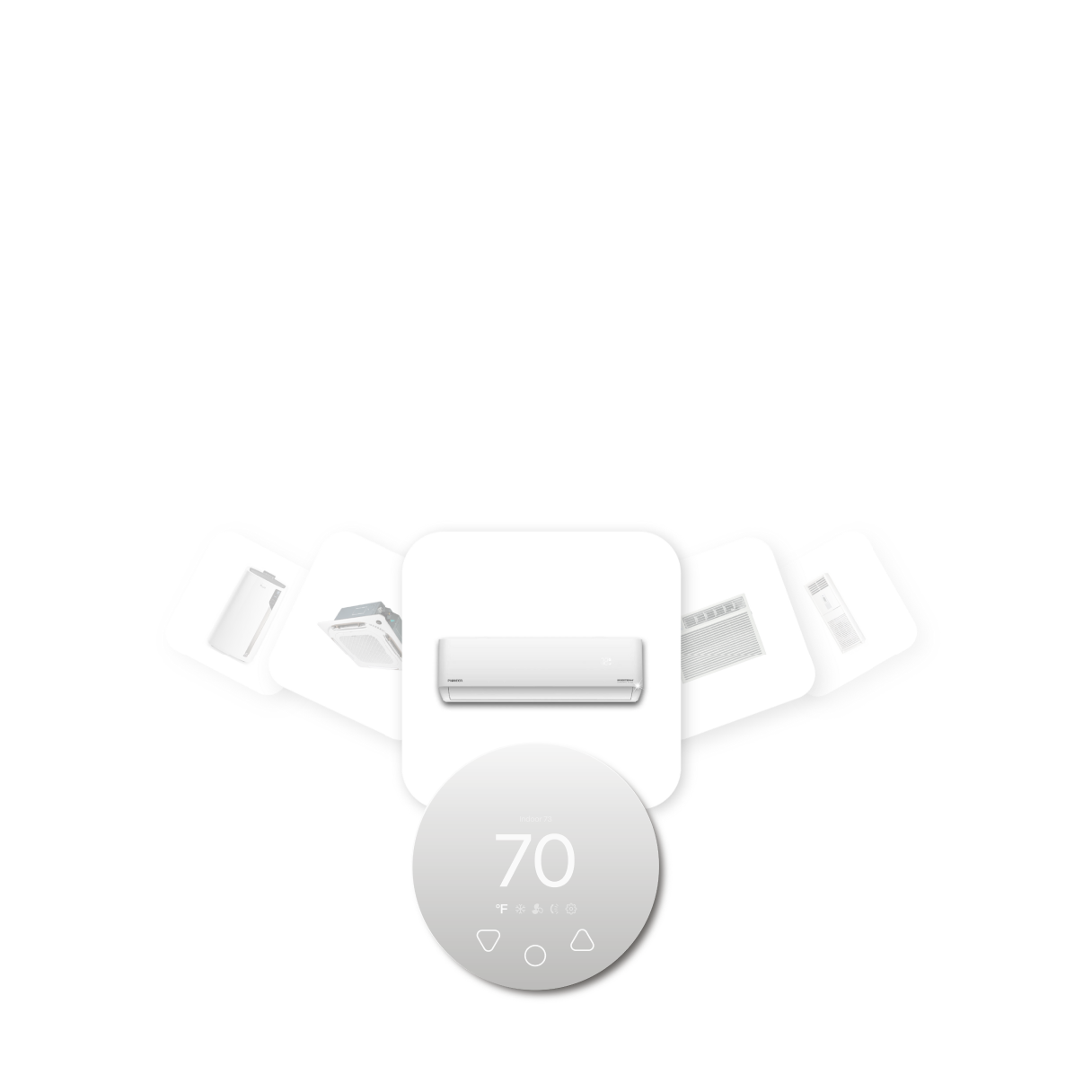

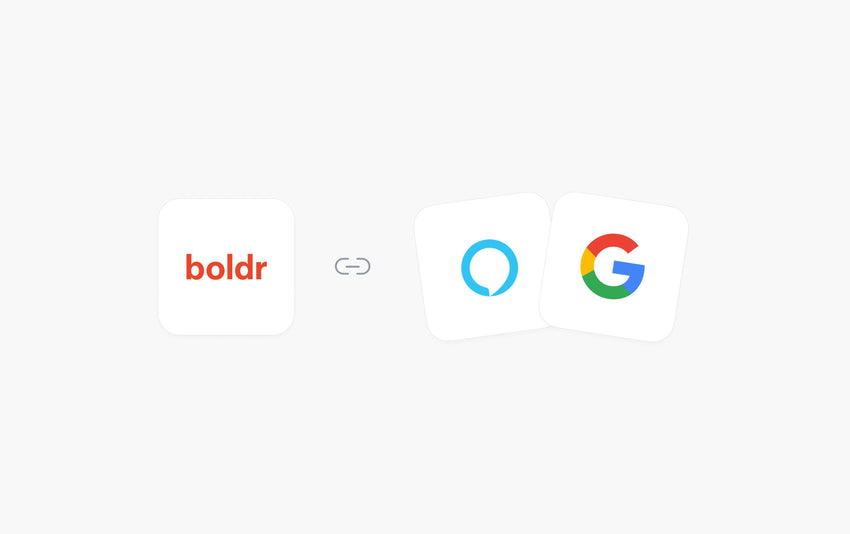
Your Boldr devices can be seamlessly integrated with voice assistants like Alexa and Google Home, allowing you to control your home's temperature using simple voice commands.
This integration offers practical benefits such as improved convenience, enhanced comfort, and potential energy savings. By using your voice, you can easily adjust temperatures, switch heating or cooling modes, set up personalized routines and more.
This guide will provide step-by-step instructions on how to link your smart thermostat to these popular voice assistants, enabling straightforward, voice control of your home's climate.
Klima - Smart Home Thermostat for Mini-splits, Air Conditioners and Heatpumps
Compatible with all brands of ACs and Mini-Splits Automate Climate Management Control remotely Reduce Energy Consumption Monitor bills in realtime
Try Now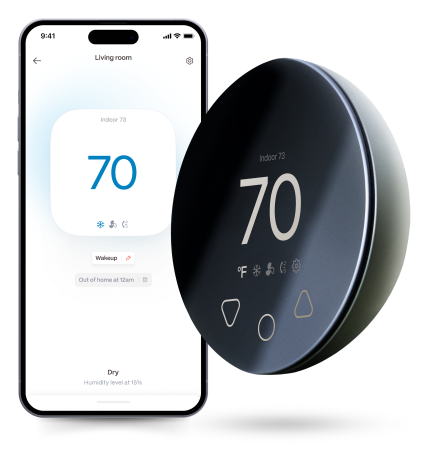
How to Connect Boldr Devices to Voice Assistants
Step 1: Access Voice Assistant Settings in the Boldr Energy App
- Open the Boldr Energy app.
- Navigate to Settings.
- Scroll down and find Voice Assistants.
- Select the smart home platform you want to connect to - Google Home or Amazon Alexa.


Step 2: Connecting Your Boldr Device to Amazon Alexa
- In the Settings page, tap the Alexa icon.
- Click the "Connect to Alexa" button.
- Sign in to your Amazon Alexa account, if you are not sign in already.
- The app will automatically link your Boldr devices to Alexa.
- Once connected, click Continue.
- Your Boldr devices are now linked to Alexa! You can now use voice commands and group devices into rooms within the Alexa app to match your setup in the Boldr app.

Step 3: Connecting Your Boldr Device to Google Home
- In the Settings page of the Boldr Energy app, tap the Google Home icon.
- Click "Connect to Google" to open the Google Home app. Tap "Continue" to confirm account linking.
- You'll be redirected back to the Boldr Energy app—tap "Agree and link" to grant permissions.
- Once linked, Google Home will display your Boldr devices, ready for room assignment and control.

If you haven't set up a Home in Google Home:
- Open the Google Home app and create a Home.
- Tap Devices > Add a Device > Works with Google Home.
- Search for "Boldr", select it, and complete the linking process in the Boldr Energy app.


Download & log into the Boldr Energy App:
|
|
Click on the icons below to If you have any questions, you can always reach our customer success team here. |


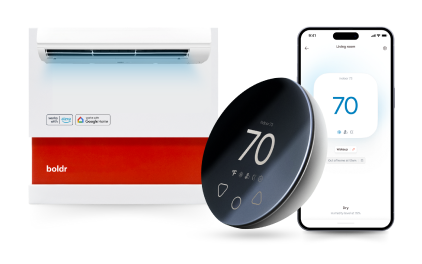
Klima - Smart Home Thermostat for Mini-splits, Air Conditioners and Heatpumps
Compatible with all brands of ACs and Mini-Splits Automate Climate Management Control remotely Reduce Energy Consumption Monitor bills in realtime
Try NowRecent Articles

Mini-Split Outdoor Unit Clearance 2026 Guide
A mini-split outdoor unit needs air. Lots of it. The condenser pull...
Read More
What Happens if Your Mini-Split Is Too Small?
Most homeowner sizing advice focuses on oversized mini-splits. But ...
Read More
Does a Mini-Split Need a Manual J Load Calculation?
A 500-square-foot room does not automatically need a 12,000 BTU min...
Read More
Signs Your Mini-Split May Have a Refrigerant Leak
A mini-split does not normally “use up” refrigerant the way a car u...
Read More
Mini-Split Minimum Capacity: Why It Matters
When homeowners compare mini-splits, they normally look at the bigg...
Read More