






Resetting a Samsung mini-split — including Wind-Free models — clears error codes and restores normal operation. Samsung's ductless systems can also be reset and monitored through the SmartThings app for connected models, providing an additional reset pathway without accessing the physical unit or breaker.
Compatible with all brands of ACs and Mini-Splits
Automate Climate Management
Control remotely
Reduce Energy Consumption
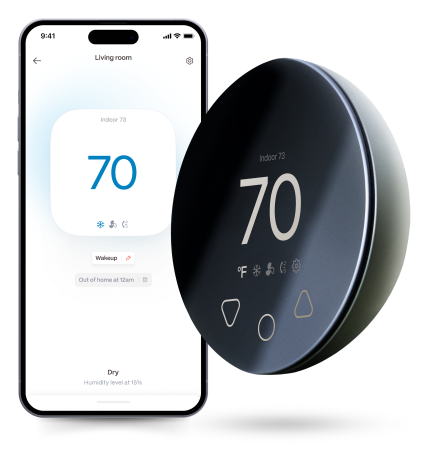
Monitor bills in realtimeKlima - Smart Home Thermostat for Mini-splits, Air Conditioners and Heatpumps
Method 1: Soft Reset (Remote)
Step 1 — Press the POWER button on the Samsung remote to turn the unit off.
Step 2 — Wait 30 seconds.
Step 3 — Press POWER to restart.
Step 4 — Wait 3 full minutes before testing operation.
Method 2: SmartThings App Reset (Connected Units)
If your Samsung mini-split is connected to SmartThings:
- Open the SmartThings app and navigate to your mini-split device
- Tap the device, then access Settings (gear icon)
- Select "Restart device" or power off through the app, wait 30 seconds, and power back on
- Wait 3 minutes before testing
This method is useful if the physical remote is unavailable or if the unit is not responding to IR commands.
Method 3: Hard Reset (Breaker)
Step 1 — Turn the unit off at the remote or SmartThings app.
Step 2 — Locate the dedicated breaker for the Samsung mini-split.
Step 3 — Flip to OFF. Wait 30 seconds.
Step 4 — Flip to ON.
Step 5 — Wait 3 full minutes before operating.
Resetting the Samsung CF Filter Indicator
After cleaning the filter (including the Wind-Free panel wipe), press and hold the FILTER button on the Samsung remote for 3 seconds. The CF indicator clears from the display. On SmartThings-connected units, the filter reminder can also be cleared in the app.
Stay cool and save more. Use code JONES15 to get 15% off your entire order—no strings attached.
Upgrade your comfort with a Klima today.
Frequently Asked Questions
My Samsung SmartThings shows the unit online but it's not responding to commands — what should I do?
This "online but unresponsive" state indicates a cloud relay disconnect — the app is showing cached status rather than live connection. Perform a hard reset (breaker off 30 seconds, on, wait 2 minutes), then check SmartThings again. If the unit still shows online but does not respond, try removing and re-adding the device in SmartThings.
Does resetting a Samsung mini-split clear my SmartThings schedule?
No — Samsung mini-split schedules are stored in your SmartThings account in the cloud, not in the unit. A breaker or remote reset does not affect stored schedules. They will resume operating normally once the unit reconnects to SmartThings after the reset.
Related reading:
→ How to Reset a Mini-Split: Step-by-Step for Every Brand
→ Samsung Mini-Split Error Codes: Full Guide
→ Mini-Split App Not Working: Fix for Every Brand


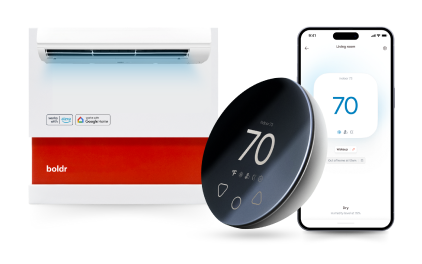
Klima - Smart Home Controller for Mini-splits, Air Conditioners and Heatpumps
Compatible with all brands of ACs and Mini-Splits Automate Climate Management Control remotely Reduce Energy Consumption Monitor bills in realtime
Try NowRecent Articles

Mini-Split Outdoor Unit Clearance 2026 Guide
A mini-split outdoor unit needs air. Lots of it. The condenser pull...
Read More
What Happens if Your Mini-Split Is Too Small?
Most homeowner sizing advice focuses on oversized mini-splits. But ...
Read More
Does a Mini-Split Need a Manual J Load Calculation?
A 500-square-foot room does not automatically need a 12,000 BTU min...
Read More
Signs Your Mini-Split May Have a Refrigerant Leak
A mini-split does not normally “use up” refrigerant the way a car u...
Read More
Mini-Split Minimum Capacity: Why It Matters
When homeowners compare mini-splits, they normally look at the bigg...
Read More