






When your mini-split's brand app stops working — failing to connect, showing units offline, or not sending commands — the fix depends on whether the problem is the app itself, the WiFi connection between the unit and your router, or the cloud service connecting your phone to the unit. This guide covers the universal troubleshooting steps that apply to any brand, followed by brand-specific tips for the most common apps.
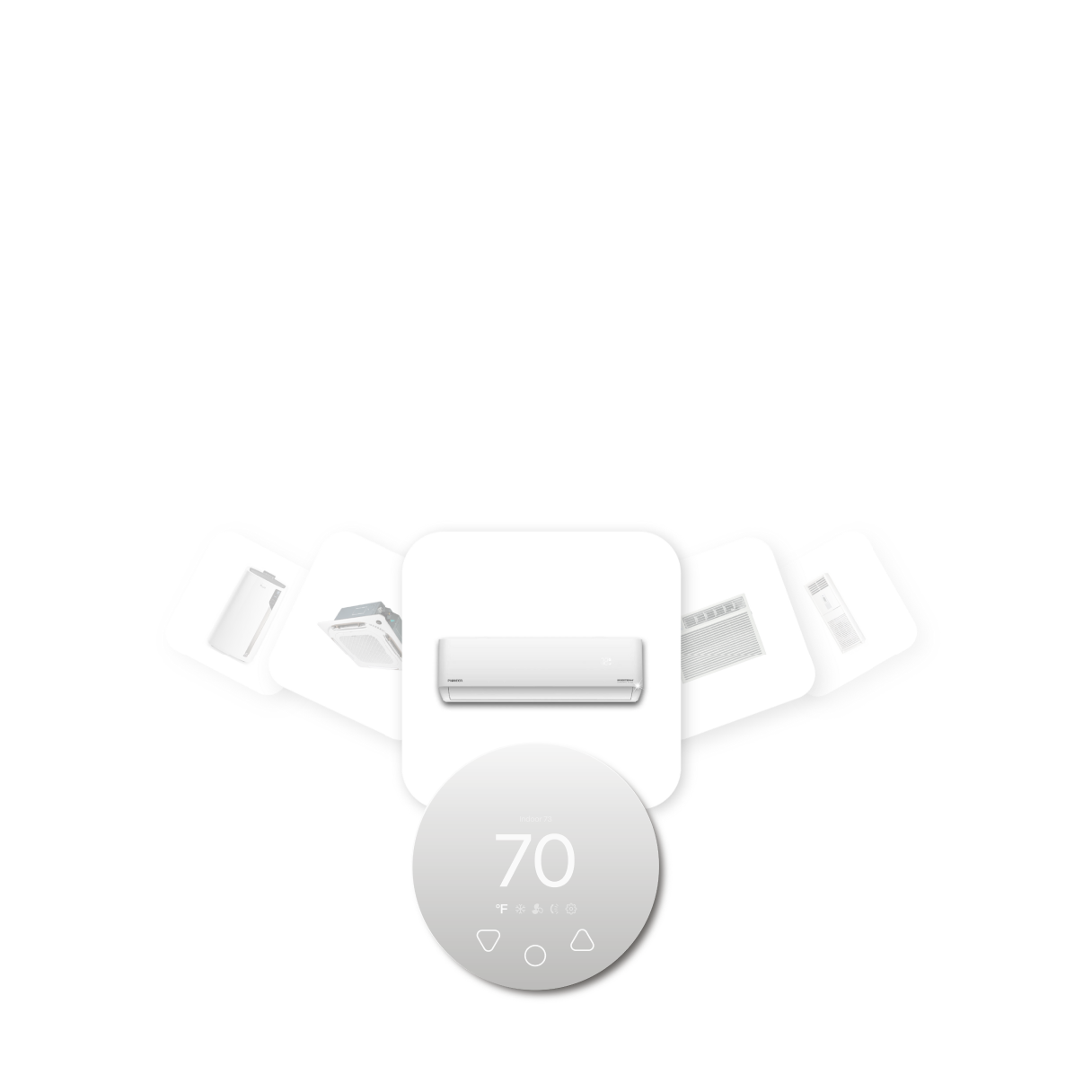
Compatible with all brands of ACs and Mini-Splits
Automate Climate Management
Control remotely
Reduce Energy Consumption
Monitor bills in realtimeKlima - Smart Home Thermostat for Mini-splits, Air Conditioners and Heatpumps
Universal Troubleshooting Steps
Step 1 — Check the obvious. Is your phone connected to WiFi? Is the mini-split powered on? Has the router rebooted recently (which changes IP addresses and disrupts device connections)?
Step 2 — Force-close and reopen the app. On both iOS and Android, force-closing the app and reopening it clears cached connection state and often resolves temporary "offline" displays.
Step 3 — Update the app. Check the App Store or Google Play for updates. Mini-split brand apps receive regular updates — running an outdated version is a common cause of connection failures after server-side updates.
Step 4 — Power-cycle the mini-split. Turn off the indoor unit at the breaker for 30 seconds, restore power, and wait 2 minutes for the WiFi module to reconnect. This resolves the majority of "unit shows offline" issues.
Step 5 — Restart the router. A router restart clears its connection table and often re-establishes connections with devices that have drifted offline.
Step 6 — Check your 2.4 GHz network. Virtually all mini-split WiFi modules connect to 2.4 GHz only. If your router recently changed configuration or you upgraded to a new router that only broadcasts 5 GHz (unlikely but possible), the unit cannot connect.
Step 7 — Re-pair the unit. If all else fails, delete the unit from the app and re-pair it from scratch. This is rarely necessary but resolves persistent authentication failures.
Brand App Quick Reference
| Brand | App Name | Known Issues |
|---|---|---|
| Mitsubishi | kumo cloud | Requires kumo cloud WiFi adapter (separate purchase); account re-login after app update |
| Daikin | Daikin One Home | Requires Daikin One WiFi adapter; adapter firmware updates can temporarily disrupt connection |
| LG | LG ThinQ | 2.4 GHz only; ThinQ account region settings can cause issues |
| MrCool | SmartHVAC | 2.4 GHz only; frequent user reports of intermittent cloud connectivity |
| Gree | Gree+ | 2.4 GHz only; location permissions required during setup |
| Samsung | SmartThings | Generally reliable; SmartThings outages occasionally affect all connected devices |
The Universal Alternative: A Smart AC Controller
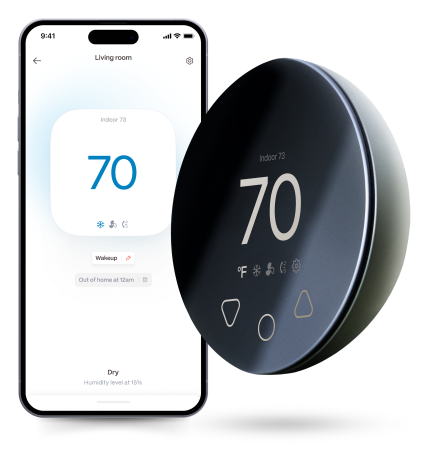
If your brand's app is unreliable, inconsistent, or simply lacks features you want — scheduling, energy monitoring, multi-brand control, or HomeKit support — a universal smart AC controller is the practical solution. The Boldr Klima works with any mini-split regardless of brand, uses infrared (no WiFi module required), and provides remote control, scheduling, energy monitoring, and multi-user access through one app. Setup takes under 3 minutes.
Frequently Asked Questions
Why does my mini-split app show the unit as online but commands don't go through?
This "online but unresponsive" state is typically a cloud relay issue — the app is connected to the cloud server but the unit's connection to that server has dropped. The app is showing cached status rather than live status. Power-cycling the indoor unit at the breaker and waiting 2 minutes for the WiFi module to reconnect usually resolves it.
Related reading:
→ How to Make Any Mini-Split Smart Without Rewiring
→ Boldr Klima Smart Controller: Complete 2026 Review
→ Mini-Split Scheduling: How to Set a Temperature Schedule


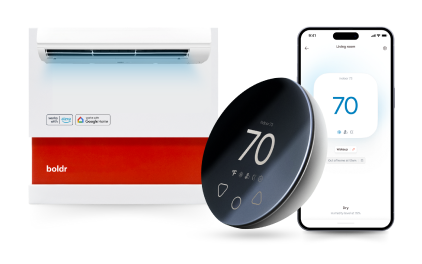
Klima - Smart Home Controller for Mini-splits, Air Conditioners and Heatpumps
Compatible with all brands of ACs and Mini-Splits Automate Climate Management Control remotely Reduce Energy Consumption Monitor bills in realtime
Try NowRecent Articles

Mini-Split for Garage Gym: Sizing and Best Options
A garage gym has some of the most demanding climate control require...
Read More
Mini-Split Turbo Mode: How It Works and When to Use It
Turbo mode (also called Powerful mode, Boost mode, or High-Power mo...
Read More
Mini-Split Summer vs Winter Efficiency: What Changes?
A mini-split's efficiency changes significantly between summer and ...
Read More
Mini-Split and Solar Panels: Can They Work Together?
Mini-splits and solar panels are a natural combination — a solar ar...
Read More
Mini-Split vs Geothermal Heat Pump: Which Is Better?
Mini-split heat pumps and geothermal (ground-source) heat pumps bot...
Read More